Building and Deploying Assets
A build is a compiled, deployable package that combines a CSS theme, an optional logo set, and an optional font set into a set of hosted URLs ready to be consumed by your Open edX Micro-Frontend (MFE) applications. Builds are the mechanism by which your visual customizations are delivered to your Open edX site at runtime.
How Builds Work
When you save a build, the platform compiles the following artifacts:
Core CSS (
core.css): The compiled base theme CSS, embedding all Paragon variable overrides from the core theme and its custom properties.Brand override CSS (
core-override.css): A supplemental file for brand-specific overrides.Variant CSS (e.g.,
light.css,dark.css): One compiled CSS file per active theme variant.Logo and image assets: The main logo, white logo, trademark logo, banner image, and favicon are hosted and served from the Branding server.
Font files: Each font file in the assigned font set is hosted and served, accompanied by the necessary
@font-faceCSS declarations.
These assets are assigned URLs in the form:
https://branding.aulasneo.com/public/build-css/<build-id>/<asset-name>.css/
https://branding.aulasneo.com/public/build-assets/<build-id>/<asset-name>/
https://branding.aulasneo.com/public/build-fonts/<build-id>/<font-id>/<font-file>/
These URLs are stable for the lifetime of the build and are included in the Tutor configuration applied to your Open edX site.
Creating a Build
Navigate to Assets > Builds in the main navigation.
Click New Build.
Fill in the fields described below.
Click Save Build.
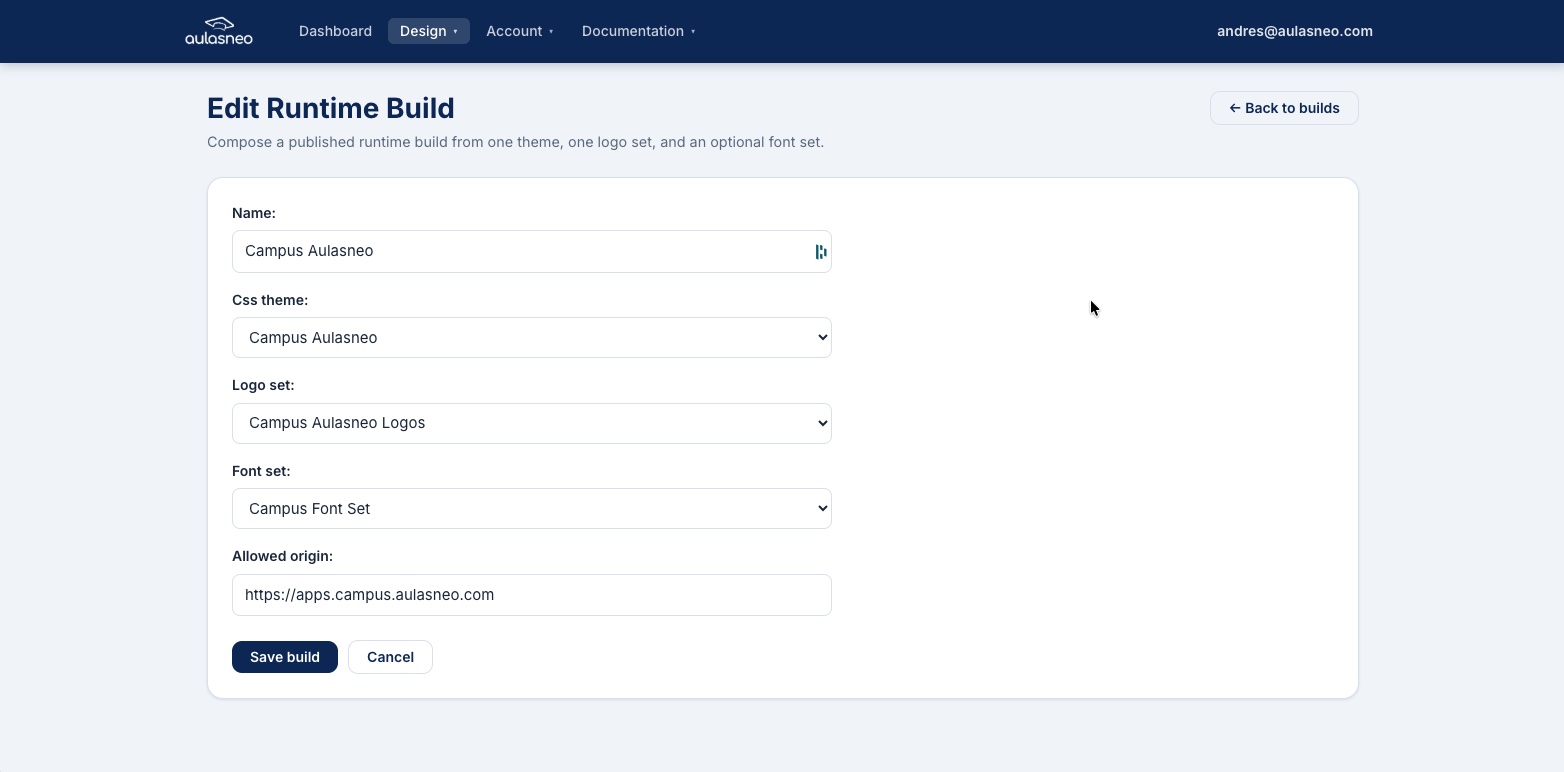
The build editor combines a CSS theme, logo set, and font set, and records the allowed origin for asset delivery.
Build Fields
- Name (required)
A descriptive label for the build. This is for internal use only and does not appear to end users.
- CSS Theme (required)
The CSS theme to compile into this build. All variants and custom Paragon properties associated with the theme are included automatically.
- Logo Set (optional)
The logo set to include in this build. If omitted, no logo assets will be hosted and the Tutor configuration will not include
BRANDING_MFE_LOGO_URLentries.- Font Set (optional)
The font set to include in this build. If your theme uses a custom font family, you must include the corresponding font set. If omitted, no font files will be hosted.
- Allowed Origin (required)
The base URL of your Open edX MFEs. This is used to restrict which origins may request assets from the Branding server (analogous to CORS origin control). In Tutor installations, this is typically:
https://apps.example.com
Include the protocol (
https://). Do not include a trailing slash.
Build Status
A build progresses through the following states:
Status |
Description |
|---|---|
Pending |
The build has been saved and is queued for compilation. |
Building |
The platform is currently compiling the CSS and preparing assets. |
Published |
The build is complete. All assets are hosted and accessible. The Tutor command is available. |
Suspended |
The build has been administratively suspended. Assets are no longer served. |
Failed |
The build encountered an error during compilation. The build log is available for diagnosis. |
If a build fails, open the build editor to view the Build Log for details on what went wrong.
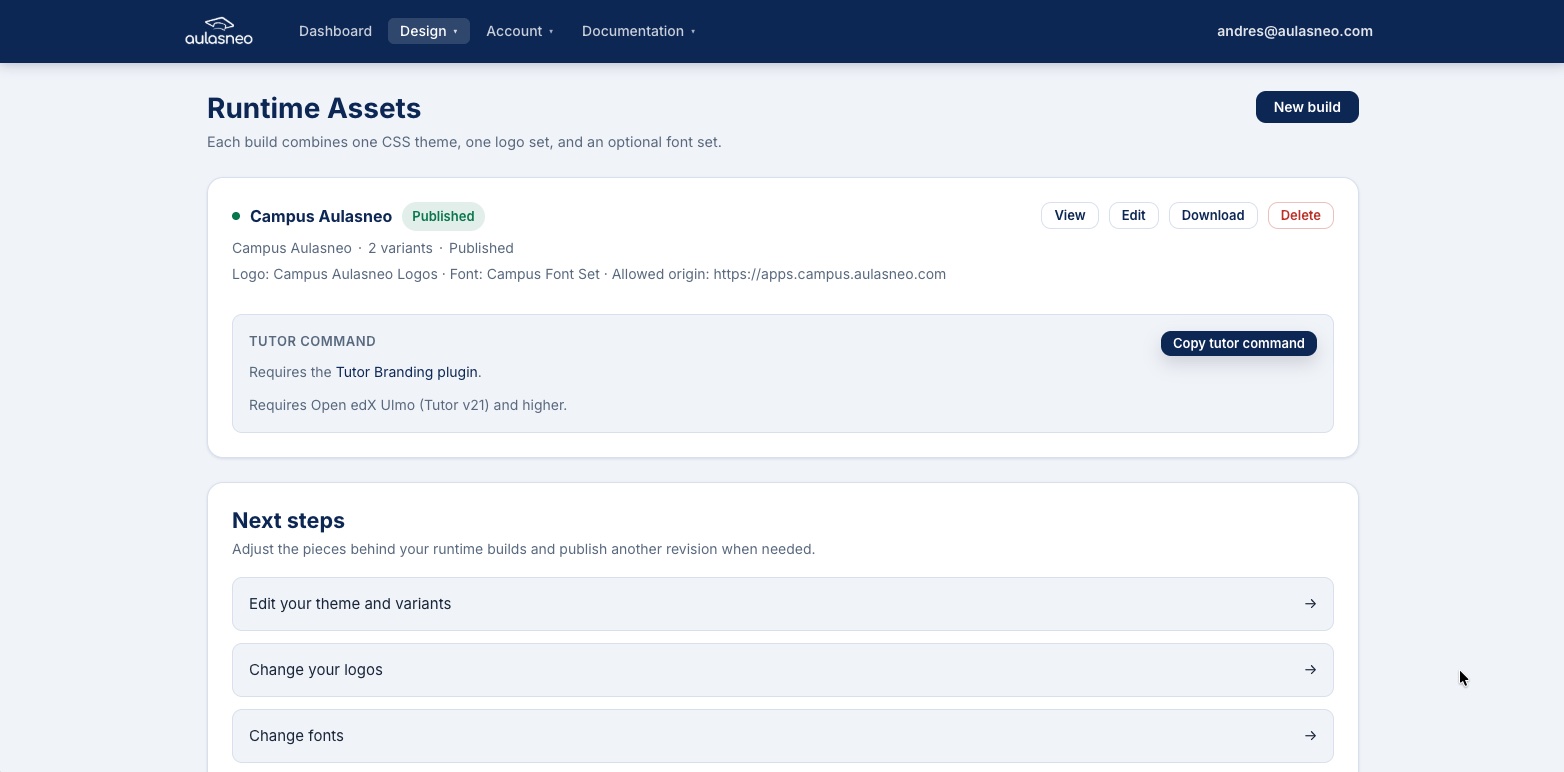
The build list displays the current status of each build and provides action buttons for managing and deploying builds.
Connecting a Build to Your Site
Once a build reaches Published status, connect it to your Open edX site:
In the build list, click Copy Tutor Command next to the published build.
Open a terminal on your server within the Tutor virtual environment.
Paste and run the command.
Save the Tutor configuration and restart the LMS service.
The copied command configures the following Tutor variables:
BRANDING_MFE_FAVICON_URL: https://branding.aulasneo.com/public/build-assets/<id>/favicon.ico/
BRANDING_MFE_FONT_URLS:
  - https://branding.aulasneo.com/public/build-fonts/<id>/<font-id>/font_name.ttf/
BRANDING_MFE_LOGO_TRADEMARK_URL: https://branding.aulasneo.com/public/build-assets/<id>/logo_trademark/
BRANDING_MFE_LOGO_URL: https://branding.aulasneo.com/public/build-assets/<id>/logo/
BRANDING_MFE_LOGO_WHITE_URL: https://branding.aulasneo.com/public/build-assets/<id>/logo_white/
BRANDING_PARAGON_THEME_URLS:
  core:
    url: https://branding.aulasneo.com/public/build-css/<id>/core.css/
    urls:
      brandOverride: https://branding.aulasneo.com/public/build-css/<id>/core-override.css/
      default: https://cdn.jsdelivr.net/npm/@openedx/paragon@23.14.2/dist/./core.min.css
  defaults:
    dark: dark
    light: light
  variants:
    dark:
      url: https://branding.aulasneo.com/public/build-css/<id>/dark.css/
    light:
      url: https://branding.aulasneo.com/public/build-css/<id>/light.css/
      urls:
        default: https://cdn.jsdelivr.net/npm/@openedx/paragon@23.14.2/dist/./light.min.css
The MFE layer reads these variables at startup and injects the corresponding CSS and assets into each application page.
When to Re-Run the Tutor Command
You must re-run the Tutor command only when the asset URLs change. This happens when:
You are adding a logo set for the first time (the logo URL variables are new).
You are adding new logo variants (white, trademark, favicon) that were not present in the previous build.
You are adding or modifying font files (the font URL list changes).
You are adding a new theme variant (a new variant URL is added to the configuration).
You are creating an entirely new build (the build ID changes, generating new URLs).
You do not need to re-run the Tutor command for:
Changes to colors, spacing, or typography in the core theme.
Modifications to an existing variant’s colors or CSS.
Replacing an existing logo with a new image of the same type.
Replacing an existing font file with an updated version of the same file.
All of these changes are reflected after a hard browser refresh, with no service restart required, because the asset files are updated in place at the same URLs.
Downloading Build Assets
If your subscription plan includes the Asset Package Download entitlement, a Download button is available in the build list. Clicking it downloads a ZIP archive containing all compiled CSS files, logos, and font files for the build. This is useful for manual deployment scenarios or for auditing the compiled output.
Deleting a Build
Builds can be deleted from the build list. Deleting a published build stops asset delivery from the corresponding URLs. If your Open edX site is still configured to use those URLs, the MFEs will fall back to default Paragon styles until the Tutor configuration is updated.