Adding Custom Fonts
A font set is a named collection of font files that can be assigned to a build. When
a build includes a font set, the font files are hosted on the Branding by Aulasneo server
and referenced via @font-face declarations that are automatically injected into the
compiled CSS. This allows custom typography to appear on your Open edX site without any
additional infrastructure.
Creating a Font Set
Navigate to Assets > Font Sets in the main navigation.
Click New Font Set.
Enter a descriptive name for the set (e.g., “Corporate Fonts – Inter + Roboto Mono”).
Click Save Font Set to create the set.
Upload font files using the Add Font File section (see Uploading Font Files below).
Uploading Font Files
Font files are uploaded individually to an existing font set. For each file:
Open the font set editor.
Click Upload Font File (or drag and drop a font file into the upload area).
The platform automatically extracts font metadata from the file, populating the Family Name, Weight, and Style fields.
Review the extracted metadata and correct it if necessary.
If the font is intended for use in monospace contexts (code, terminal), enable the Monospace toggle.
Save the font file entry.
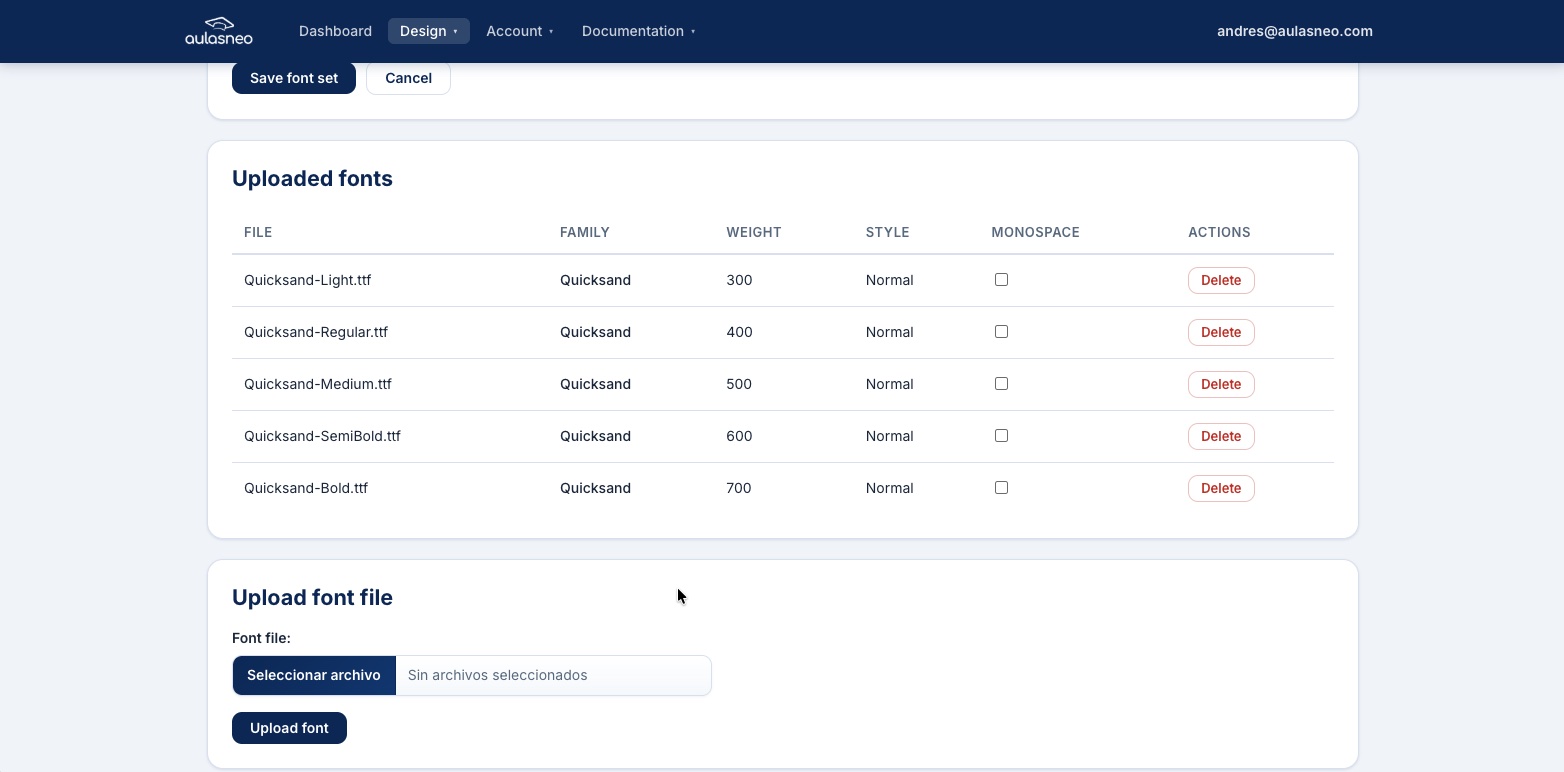
The font set editor displays each uploaded font file with its metadata, weight, and style. Individual files can be deleted without affecting other fonts in the set.
Supported Formats
The following font file formats are accepted:
Format |
Notes |
|---|---|
|
Recommended. The most compressed and widely supported web font format for modern browsers. Use this format whenever possible. |
|
The predecessor to WOFF2. Slightly larger file size but supported by a broader range of older browsers. |
|
TrueType font. Larger than WOFF formats and typically used as a fallback for environments that do not support WOFF. |
|
OpenType font. Supports advanced typographic features such as ligatures and alternate glyphs. |
Font Metadata
When a font file is uploaded, the platform uses font introspection to extract the following metadata:
- Family Name
The font family identifier (e.g.,
Inter,Roboto,Open Sans). All fonts within the same family should share the same family name.- Weight
A numeric value from 100 to 900 representing the font’s visual weight:
Value
Common Name
100
Thin
200
Extra Light
300
Light
400
Regular (default body weight)
500
Medium
600
Semi Bold
700
Bold
800
Extra Bold
900
Black
- Style
Either
normaloritalic.- Monospace
A boolean flag. Enable this for fonts that should be used in code, keyboard, and pre-formatted text contexts. The monospace font is assigned separately from body and heading fonts in the theme typography settings.
Assigning a Font Set to a Theme
After creating a font set, you must assign it in two places:
In the theme typography settings: Open the CSS theme editor and navigate to the Typography section. The custom fonts from your font sets will appear in the drop-down lists for body, heading, and monospace font families. Select the desired family name from each drop-down.
In the build: When creating or editing a build, select the font set from the Font Set drop-down. This ensures the font files are included in the compiled build and served to the Open edX MFEs.
Important
If you assign a custom font family in the theme but omit the font set from the build, the font files will not be served and the browser will fall back to the next font in the stack. Always include the corresponding font set in any build that uses a custom font.
Deleting Font Files
Individual font files can be deleted from a font set by clicking the Delete icon next to the font entry. Deleting a font file removes it from the set and from any subsequent builds. If the font is actively used in a published build, the change will not affect the live site until a new build is compiled and the Tutor command is re-run.
Deleting a Font Set
A font set can be deleted from the font set list if it is not currently referenced by any build. Remove or update any builds that use the font set before attempting to delete it.
Best Practices
Provide WOFF2 format whenever possible. Modern browsers prefer WOFF2 for its superior compression, resulting in faster page loads.
Include all weight variants you plan to use. If your theme uses both Regular (400) and Bold (700), upload both files. Browsers simulate missing weights by artificially thickening or thinning available weights, which rarely matches the true design intent.
Keep family names consistent. All font files in the same family should share exactly the same family name. Inconsistent names will result in the browser treating them as separate families.
Include system fallbacks in the theme typography. Always specify fallback fonts in the font stack (e.g.,
"Inter", Arial, sans-serif) to ensure legible text if the custom font fails to load.